

How Oversized Images Were Killing My WordPress SEO — and How I Fixed It
The site loaded in 4.2 seconds. We had already upgraded the hosting plan, installed a caching plugin, and minified the CSS. Nothing moved the needle. The PageSpeed score sat at 38 and would not budge.
Then we looked at the images. That is where the entire problem was hiding.
How Images Silently Wreck Page Speed
Most WordPress users upload images the way they receive them. A photo from a phone goes straight into the media library at 3,000 by 4,000 pixels and 4MB. A screenshot from a design tool lands as a full-resolution PNG at 2MB. A banner graphic exported at maximum quality sits at 1.5MB. Nobody resizes before uploading because WordPress displays them at the right size on screen. The file is still 4MB. The browser still downloads the full file.
Multiply that across a page with a header image, three in-article images, a sidebar graphic, and a footer logo. Each one loads at full original size. The browser fetches all of them before the page finishes rendering.
The result: slow load times, poor Core Web Vitals, and a PageSpeed score that Google uses as a ranking signal. You can have the best content on the internet, but if your page takes 4 seconds to load because of uncompressed images, Google will rank a faster competitor above you.
Most people blame hosting when their site is slow. In our experience, the majority of slow WordPress sites have a media problem, not a server problem.
The Numbers on One Site
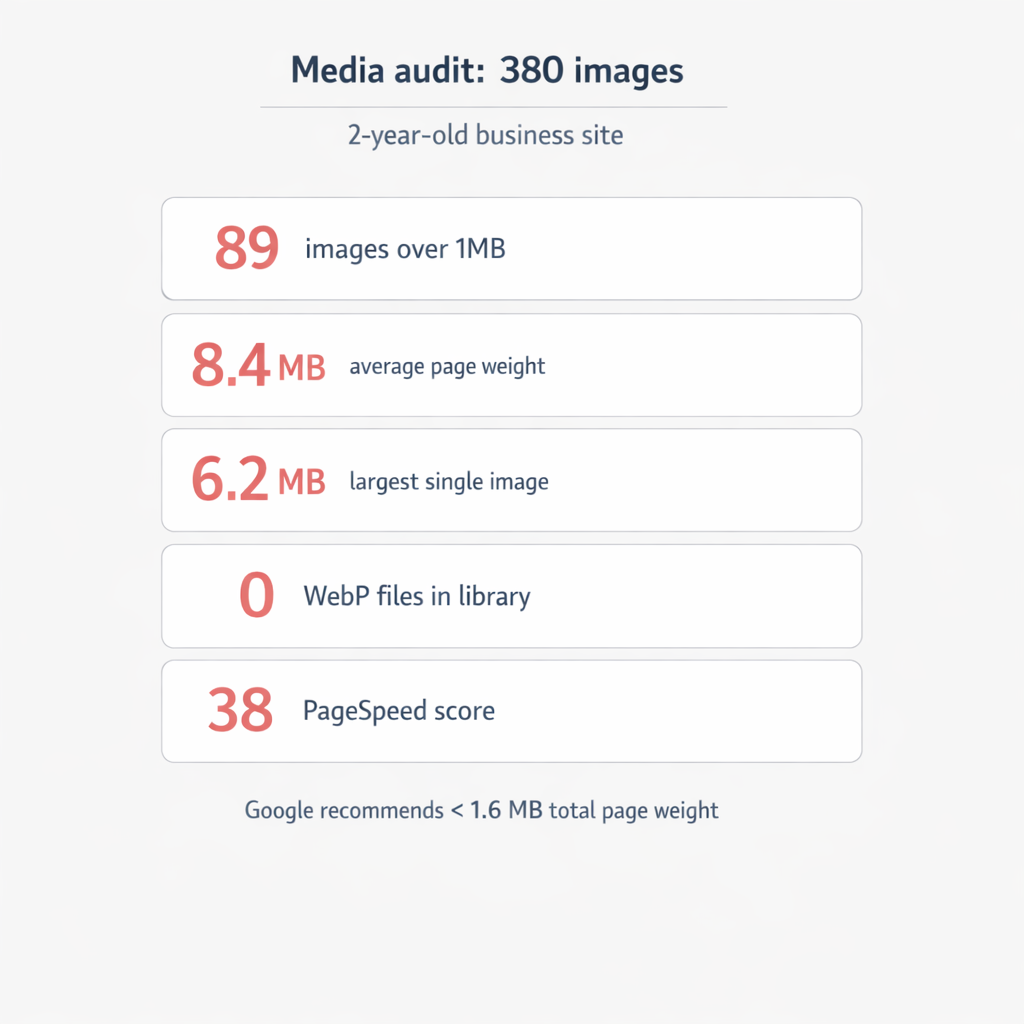
We connected vLake to a client site that had been live for two years. A mid-size business blog with about 120 published posts and a product catalog with 40 pages. The media library had 380 images.
The scan returned these numbers:
- 89 images over 1MB. Almost a quarter of the library. These were the worst offenders. Header images, full-width banners, and product photos uploaded at original camera resolution.
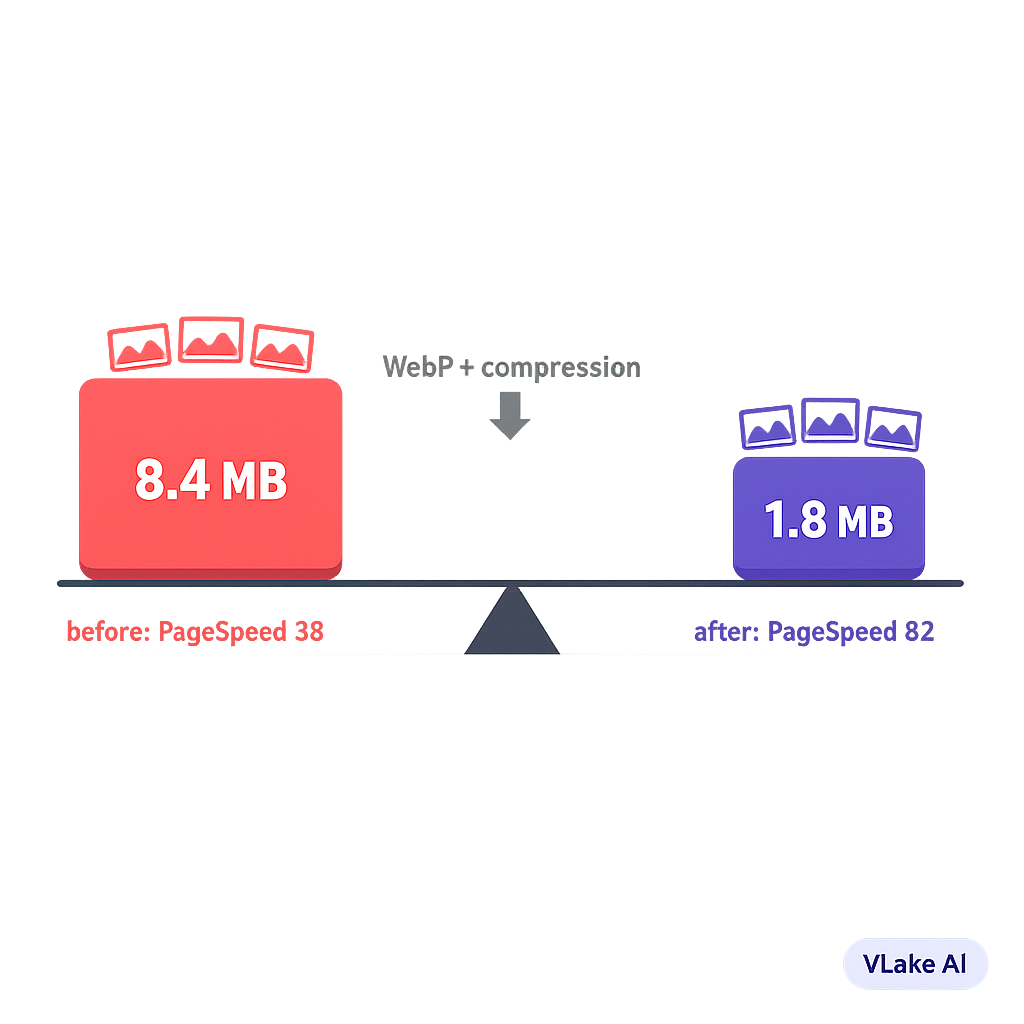
- Average page weight: 8.4MB. For context, Google recommends keeping total page weight under 1.6MB for mobile. This site was more than five times over.
- Largest single image: 6.2MB. A hero banner that loaded on every page of the site. One image, adding 6.2MB to every single page load.
- Zero WebP files. Every image was either JPEG or PNG. No modern format adoption at all.
- PageSpeed score: 38. Google flags anything under 50 as poor. This site was deep in the red.
The site owner thought the problem was the hosting provider. They had already upgraded from shared hosting to a VPS. The speed barely changed because the bottleneck was never the server. It was the images.
What vLake Found and Fixed
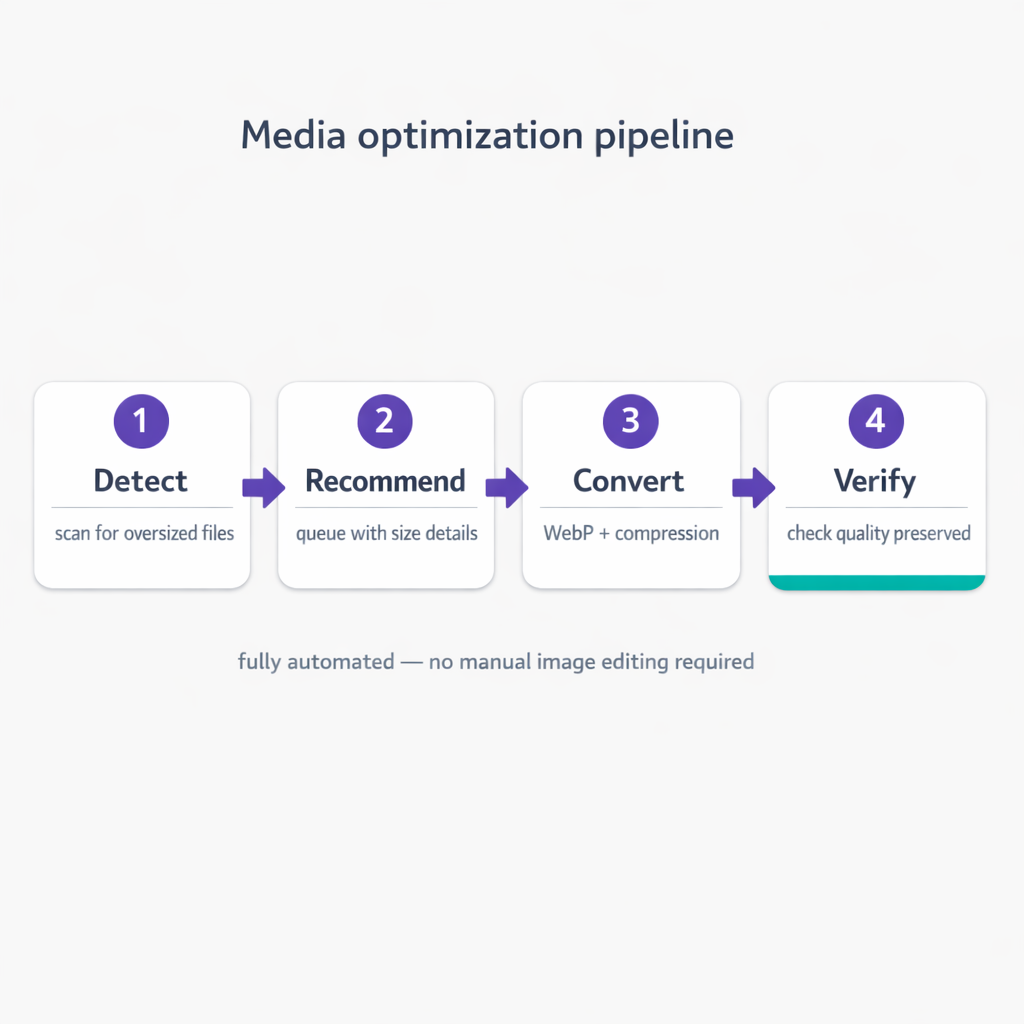
The media scanner flagged every oversized image as a MEDIA_OPTIMIZE_SIZE recommendation. Each recommendation included the current file size, the target format (WebP), and the estimated savings.
The fix pipeline worked like this:
- Detect — scanner identifies every image over the size threshold.
- Recommend — each image gets a queued MEDIA_OPTIMIZE_SIZE recommendation with specifics.
- Convert — the agent converts each image to WebP format with optimized compression. No quality loss visible at screen resolution.
- Verify — the new file is checked against the original to confirm the conversion preserved the image.
The entire library was processed over three days. The site owner reviewed the converted images on the workflow board, spot-checked a handful for quality, and approved the batch. No manual image editing. No Photoshop. No bulk-resize plugin that requires configuring settings and running a separate operation.
The Before/After
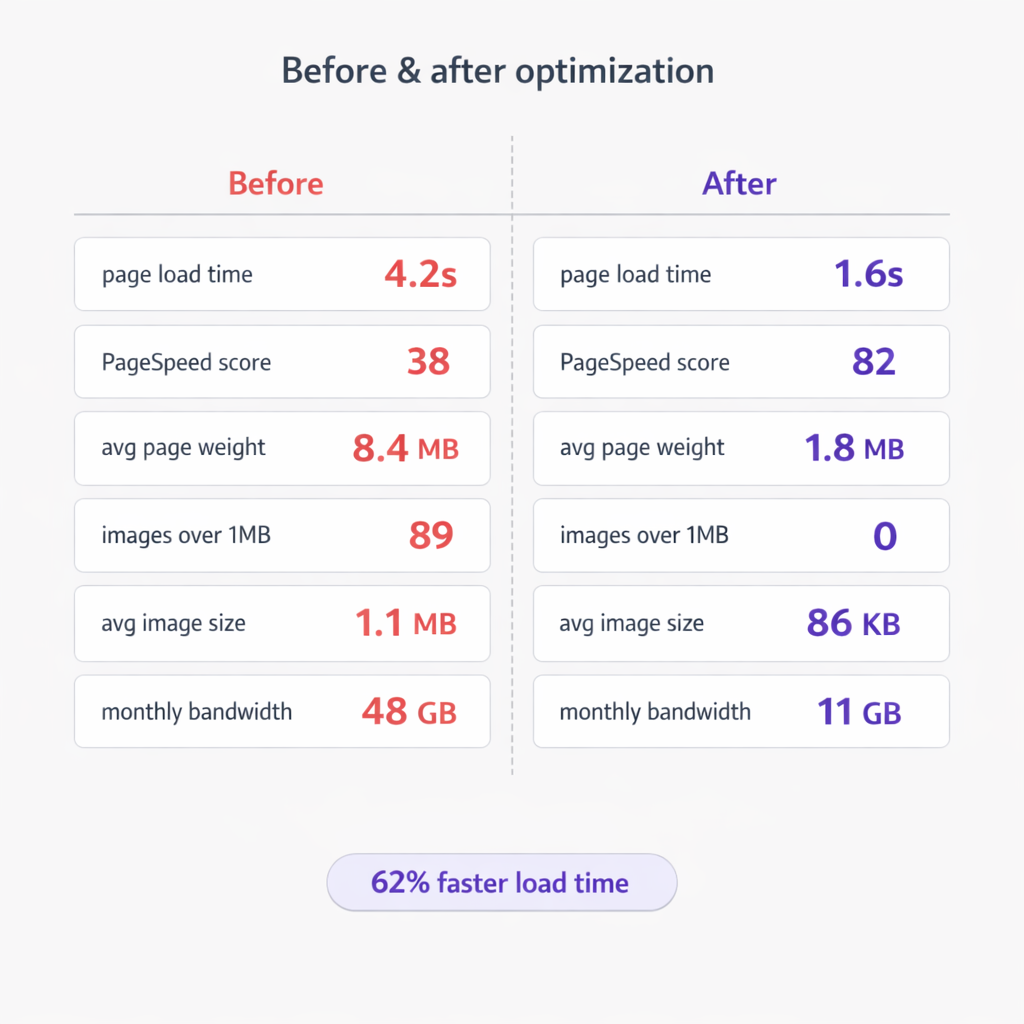
| Metric | Before | After |
|—|—|—|
| Page load time | 4.2s | 1.6s |
| PageSpeed score | 38 | 82 |
| Average page weight | 8.4MB | 1.8MB |
| Images over 1MB | 89 | 0 |
| Average image size | 1.1MB | 86KB |
| Estimated monthly bandwidth | 48GB | 11GB |
The page load time dropped by 62%. The PageSpeed score more than doubled. The bandwidth savings alone justified the effort, especially for a site running on a metered hosting plan.
The SEO impact followed within weeks. Google re-crawled the faster pages and the site started climbing for keywords it had been stagnant on. Not because the content changed, but because the delivery speed improved.
Why This Keeps Happening
Here is the part most people miss: image optimization is not a one-time fix. Every new blog post, every product page update, every team member who uploads a quick photo reintroduces the problem. You optimize 380 images today, and by next month you have 20 new ones that nobody compressed.
This is why continuous scanning matters. The vLake media scanner runs on the library regularly. Any new upload that exceeds the size threshold gets flagged automatically. The recommendation appears on the board, the agent processes it, and the image gets optimized before it has a chance to slow anything down.
The boring answer to “how do I make my WordPress site faster” is almost always the same: fix the images. Not once. Continuously.