

My WordPress Page Speed Went from 3.8s to 1.7s. Here’s the Boring Reason Why.
Everyone asked which hosting provider I switched to. The answer was none. They asked which caching plugin I installed. Already had one. They asked if I rebuilt the theme. Nope. Same theme, same host, same plugins.
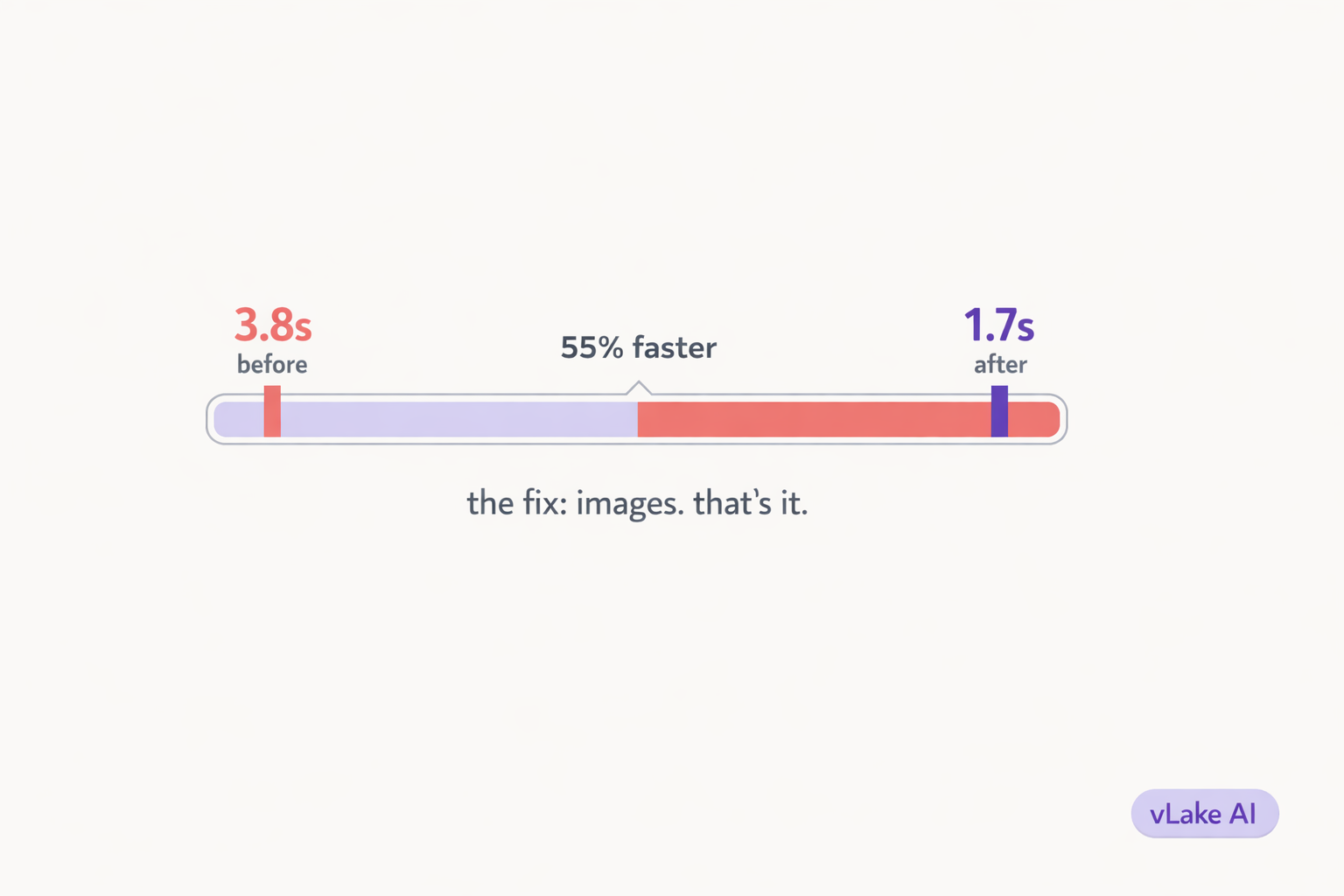
The entire speed improvement came from one thing: fixing the images. That is the boring answer. It is also the correct one.
What I Expected vs What Was Actually Wrong
When a WordPress site loads slowly, the instinct is to blame the server. Shared hosting is too slow. The PHP version is outdated. The database needs optimization. Maybe the theme is bloated. Maybe a plugin is running too many queries.
I went down that path. I upgraded hosting. I tested with different caching configurations. I deactivated plugins one by one to find the bottleneck. Nothing made a meaningful difference. The load time moved from 4.1 seconds to 3.8 seconds across three weeks of troubleshooting.
Then I ran a PageSpeed Insights test and actually read the details instead of just looking at the score. The diagnostic section said the same thing on almost every page: “Serve images in next-gen formats” and “Properly size images.” The opportunity section estimated that fixing images alone would save 2.4 seconds of load time.
78% of the page weight on my highest-traffic pages was images. Not scripts. Not stylesheets. Not fonts. Images.
The Image Audit
I connected vLake and ran the media scanner across the full library.
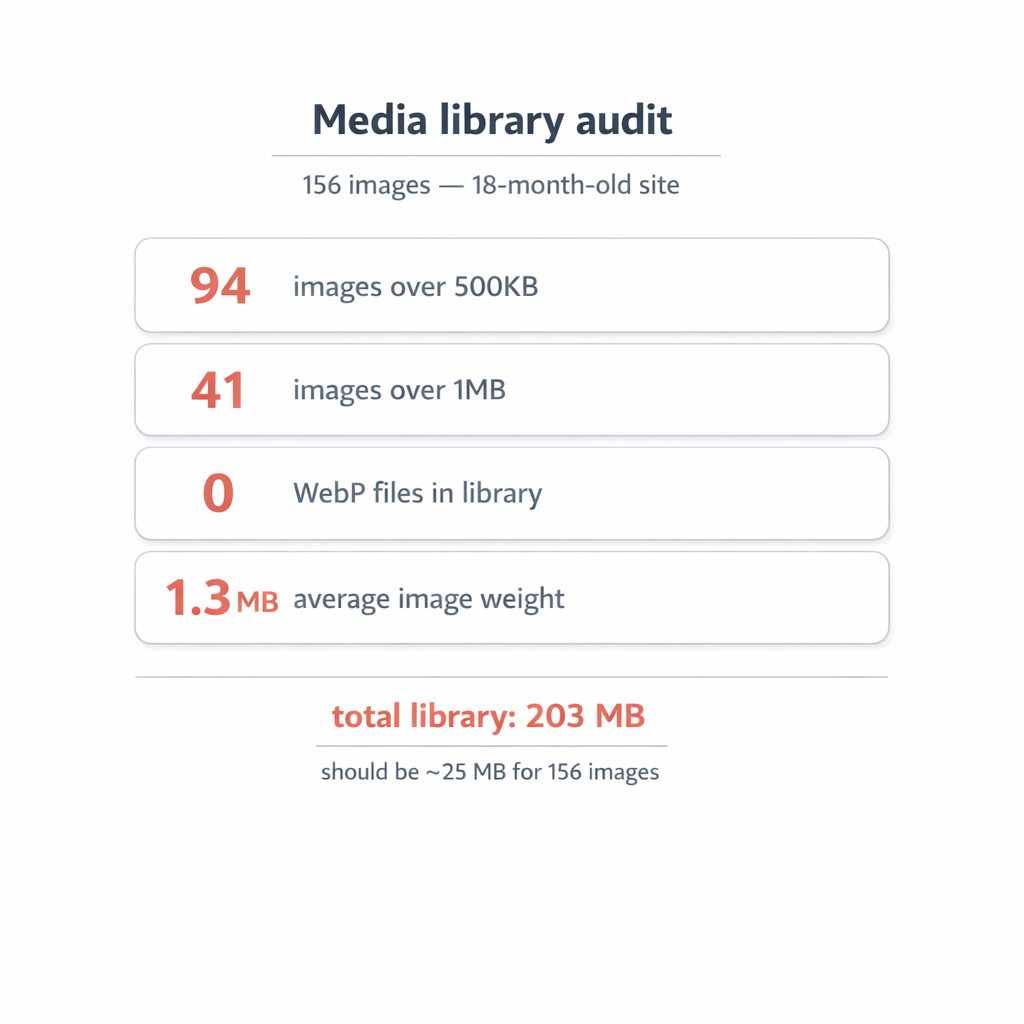
The site had 156 images built up over 18 months of content publishing, theme assets, and a few landing pages.
Here is what the scan found:
- 94 images over 500KB. That is 60% of the library exceeding what should be a generous upper limit for web images.
- 41 images over 1MB. These were the heavy hitters. Blog featured images uploaded at original resolution. Product photos that were never compressed. One background texture that was 3.4MB.
- Zero WebP files. Every image was either JPEG or PNG. The site was not serving any modern formats.
- Average image weight: 1.3MB. For context, a well-optimized blog image should be under 150KB. My average was nearly nine times that.
The total media library weighed 203MB. For a site with 156 images, that is absurd. It should have been closer to 25MB.
The Fix
vLake flagged every oversized image as a MEDIA_OPTIMIZE_SIZE recommendation. The agent processed the queue over two days. Each image was converted to WebP format with optimized compression settings. No visible quality loss at screen resolution. The originals were preserved as backups.
The process was entirely automated. I did not open Photoshop. I did not install a bulk resize plugin. I did not manually export each image at a lower quality setting. The scanner identified the problem, the recommendation engine queued the fix, and the agent executed it.
I reviewed the batch on the workflow board the next morning. Spot-checked maybe a dozen images to make sure the compression was not visible. It was not. Approved the batch in about 10 minutes.
The 3.4MB background texture dropped to 180KB.
Featured images that were 1.5MB became 120KB. Product photos went from 2MB to 160KB. Same visual quality, fraction of the file size.
The Numbers
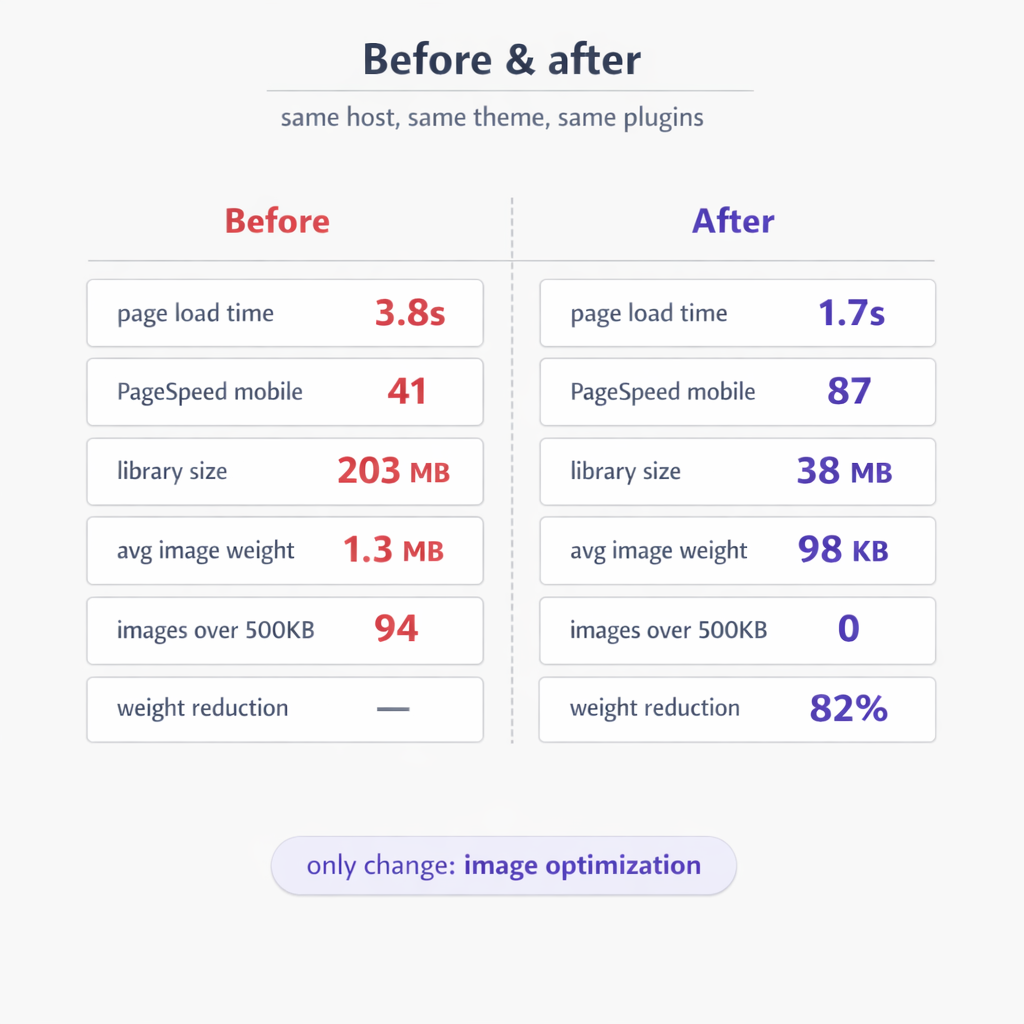
Here is the before and after, measured one week apart:
| Metric | Before | After |
|---|---|---|
| Page load time | 3.8s | 1.7s |
| PageSpeed score (mobile) | 41 | 87 |
| Total media library size | 203MB | 38MB |
| Average image weight | 1.3MB | 98KB |
| Images over 500KB | 94 | 0 |
| Total image weight reduction | — | 82% |
The page load time dropped by 55%. The PageSpeed score more than doubled. The total media library shrank by 81%.
The hosting bill did not change. The theme did not change. The plugins did not change. The content did not change. The only difference was that the images were now in the right format at the right size.
Google re-crawled the site over the following two weeks. Rankings for three keywords I had been stuck on started moving up. One went from position 14 to position 7. Not because the content improved, but because the page delivered faster and Google rewarded that.
The Boring Truth
The answer to “how do I speed up my WordPress site” is almost never a hosting upgrade. It is almost never a new caching plugin or a theme rebuild. In my experience, the first thing to check is always the images.
It is not exciting. It does not feel like a breakthrough. But the numbers are hard to argue with. If your site is loading slowly and you have not audited your media library, that is where I would start.