

What Happens When You Let AI Audit Your Entire WordPress Media Library
We connected vLake to a client’s media library expecting maybe a few missing alt tags. The first scan came back with 312 issues. Not 312 images. 312 distinct problems across 240 images. The site had been live for three years, published content weekly, and nobody had ever looked at the media library as a whole.
That number changed how we think about media management. Not because the problems were hard to fix. Because nobody knew they existed.
What a Media Audit Actually Checks
Most people think a media audit means checking file sizes. Maybe running a plugin that flags images over 1MB. That covers about 20% of what actually matters.
A full media audit checks six things:
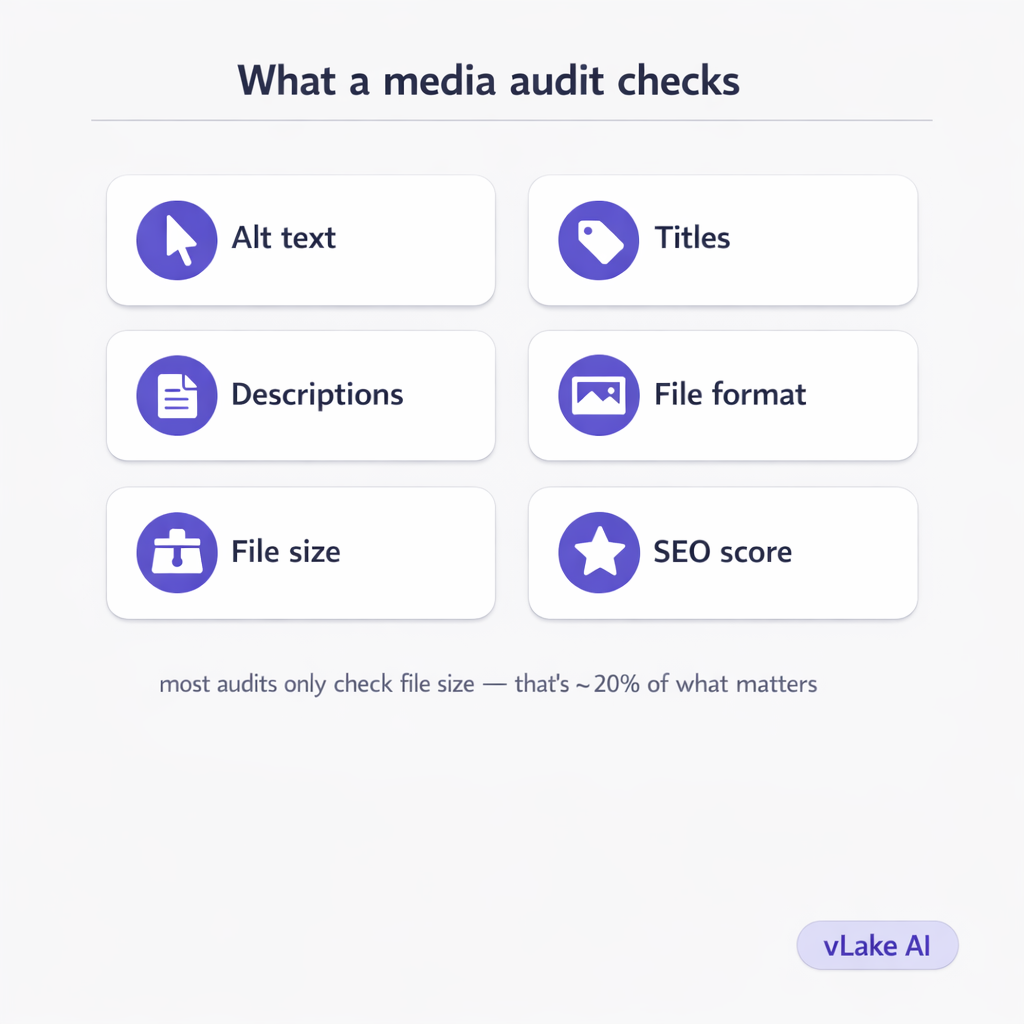
- Alt text — is every image described for search engines and screen readers?
- Titles — does each image have a meaningful title, or is it still `IMG_20230415_142837.jpg`?
- Descriptions — is the media metadata filled in for SEO indexing?
- File format — is the image in a modern format like WebP, or still an uncompressed PNG from 2021?
- File size — is the image optimized for web delivery, or is it a 4MB upload straight from a phone?
- SEO completeness score — across all metadata fields, how complete is each image’s SEO profile?
When we ran the vLake media scanner on this client’s library, it checked all six. Every image got a score. Every gap got flagged as a recommendation.
Most site owners have never seen their media library scored this way. They upload images, use them in posts, and move on. The library just sits there, growing quietly.
What We Found on One Site
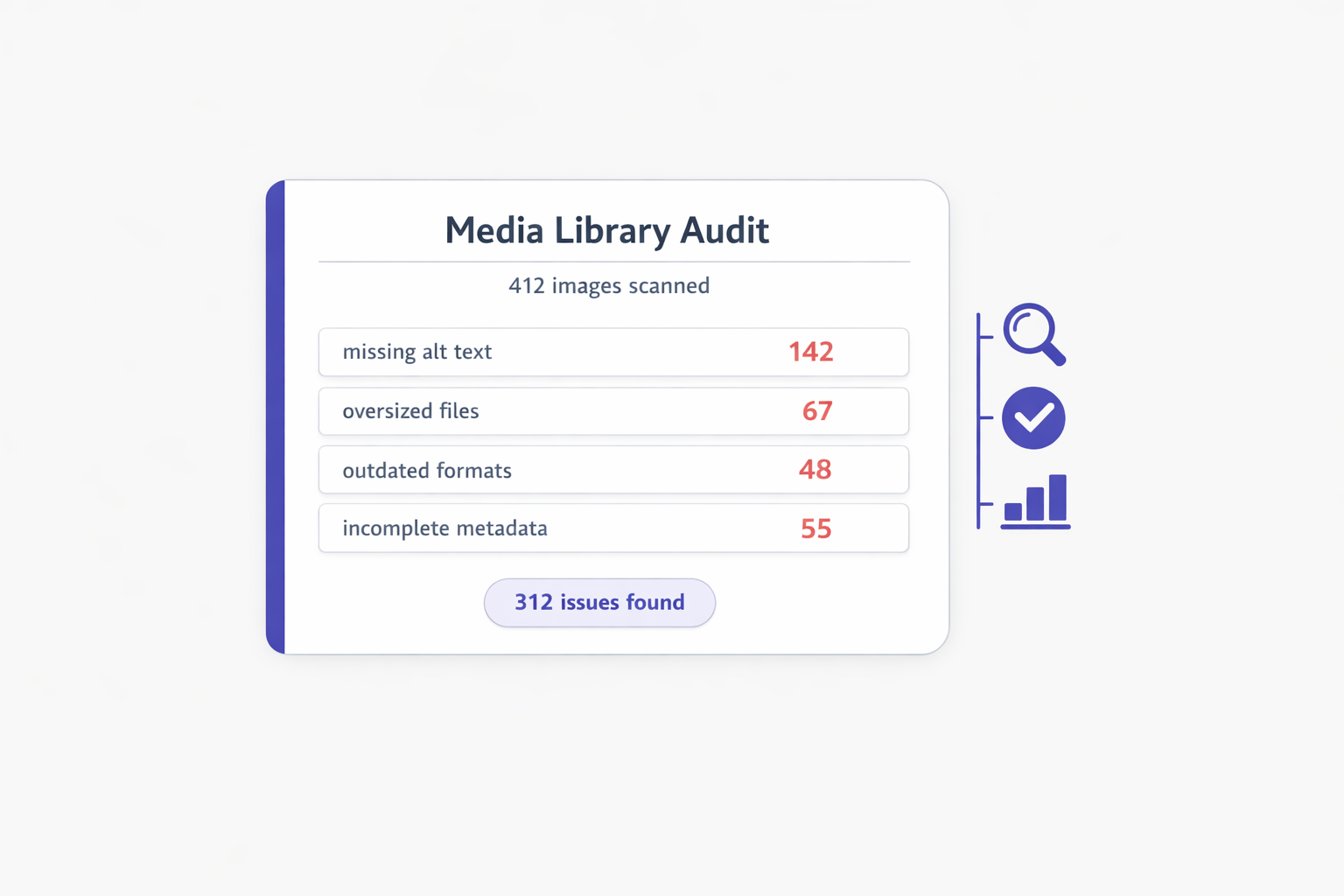
The site had 412 images in its media library. Built up over three years of weekly content, theme changes, plugin uploads, and one-off landing pages. Here is what the scan returned:
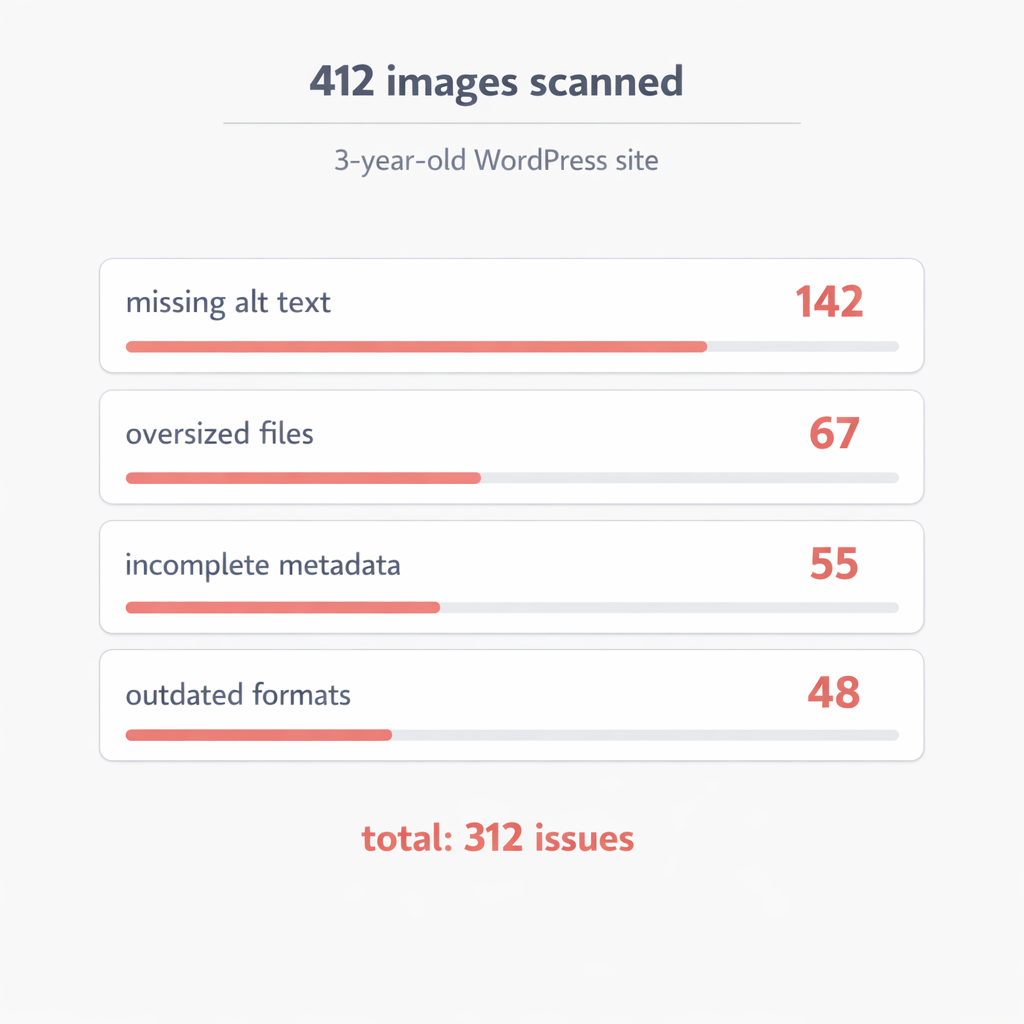
- 142 images with missing alt text. That is 34% of the library. Every one of those images was invisible to Google Image Search and inaccessible to screen readers.
- 67 oversized images. Files over 500KB that should have been 80KB. Some were over 2MB. One header image was 5.8MB. A single image, loading on every page.
- 48 images in outdated formats. PNGs where JPEGs would have been half the size. Zero WebP files anywhere in the library.
- 55 images with incomplete metadata. Titles like `Screenshot 2022-09-14` and `hero-banner-final-v3-FINAL`. No descriptions. No meaningful titles. Technically present but useless for SEO.
Total: 312 issues. The site owner had no idea. The site loaded, the images appeared, and nothing visibly broke. But the SEO cost was real. The page speed cost was real. The accessibility cost was real.
The Pattern Nobody Talks About
Here is what we keep seeing across sites. Media libraries grow silently. Nobody manages them the way they manage blog posts or pages.
When you publish a blog post, you write it, edit it, optimize it, and check the SEO score before hitting publish. When you upload an image, you drag it into the media uploader and move on. Maybe you fill in the alt text. Probably not.
Over time, this adds up. Every theme change leaves behind unused images. Every page builder adds its own uploads. Every quick “I’ll fix it later” upload stays unfixed. The library becomes a graveyard of unoptimized, undescribed, oversized files that quietly drag down your site’s performance and search visibility.
The client we audited published content every week for three years. That is roughly 150 blog posts. Each post added 2 to 3 images. The theme added another 30 or so. Plugins added more. Nobody ever went back and audited what was already there.
This is not a negligence problem. It is a visibility problem. You cannot fix what you cannot see. And nobody looks at their media library the way they look at their blog list.
What Happened Next
vLake’s recommendation engine created a queued action for every issue. 142 MEDIA_MISSING_SEO recommendations for alt text. 67 MEDIA_OPTIMIZE_SIZE recommendations for oversized files. The rest queued as metadata and format fixes.
The agent processed the queue over the following week. Each image got contextual alt text generated by the AI, not generic “image of a thing” descriptions, but alt text that described what the image actually showed in the context of the page it appeared on. Oversized images were converted to WebP and compressed. Metadata was filled in.
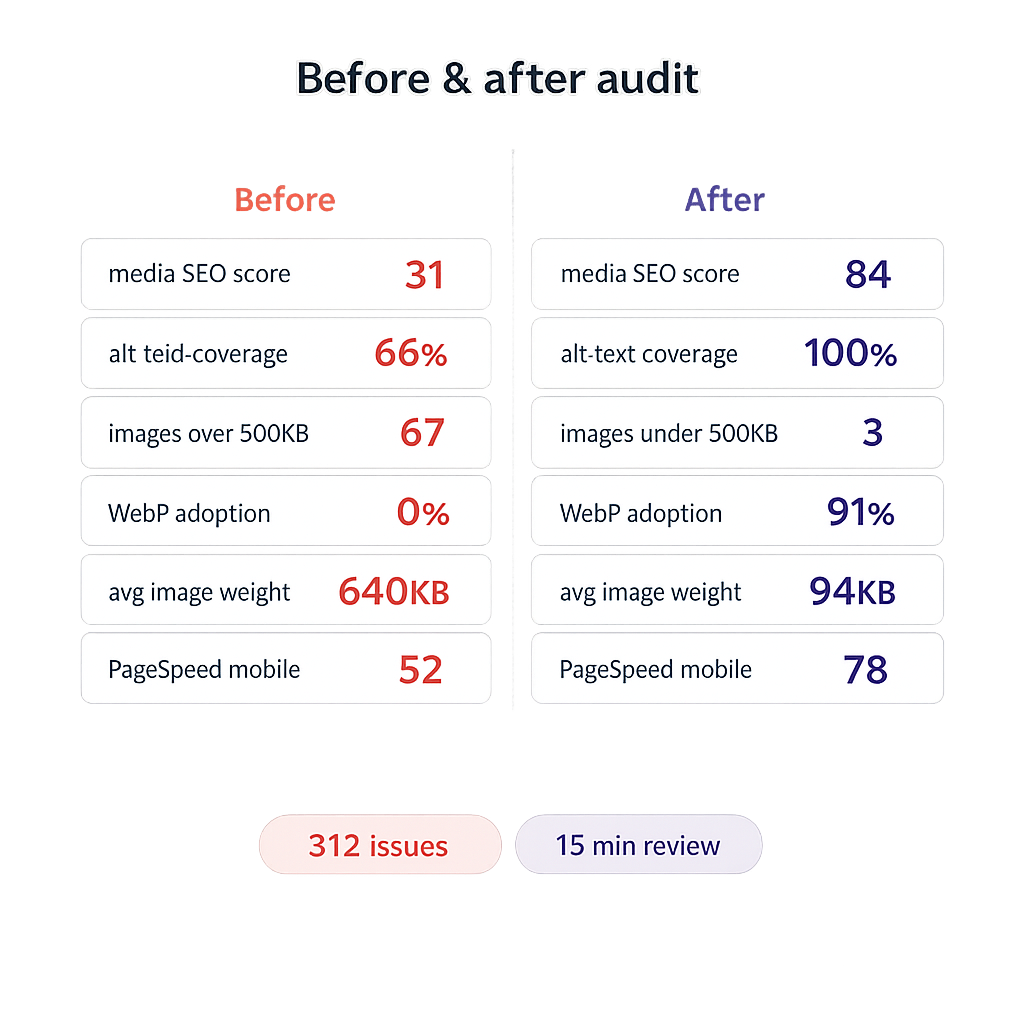
Here are the numbers after the first pass:
| Metric | Before | After |
|—|—:|—:|
| Media SEO score (avg) | 31 | 84 |
| Alt text coverage | 66% | 100% |
| Images over 500KB | 67 | 3 |
| WebP adoption | 0% | 91% |
| Average image weight | 640KB | 94KB |
| PageSpeed (mobile) | 52 | 78 |
The three remaining oversized images were SVGs used by the theme that could not be converted without breaking the layout. Everything else was handled automatically.
The site owner reviewed the changes on the workflow board, approved the batch, and moved on. Total time spent: about 15 minutes of review. The audit, the fixes, and the optimization happened without manual work.
The Takeaway
Your media library is not a storage folder. It is a performance layer, an SEO layer, and an accessibility layer. If nobody has audited it, you have no idea what is in there.
The fix is not complicated. It is just invisible until something scans for it.